You want Mneme on your phone — Claude on mobile, talking to the same vault your desktop already sees. The setup happens on the web (Anthropic’s mobile apps treat custom connectors as web-managed for now), and then it just appears in Claude on mobile — iOS and Android — the next time you sign in.
“Installing connectors on mobile is currently in beta — Claude Desktop and web remain the primary path for custom connectors.” — Anthropic’s connector docs
That sounds like a limitation. In practice it’s the easier path: set it once on the web, get it everywhere.
Sign in to Mneme
If you haven’t already, open mneme.tools and click Continue with Google. One tap.
Copy the connector URL
In Mneme, open Settings from the side menu. Halfway down there’s a field labelled MCP Connector URL. The value is:
https://mneme.tools/mcp
Click the copy icon. That’s the link Claude needs.
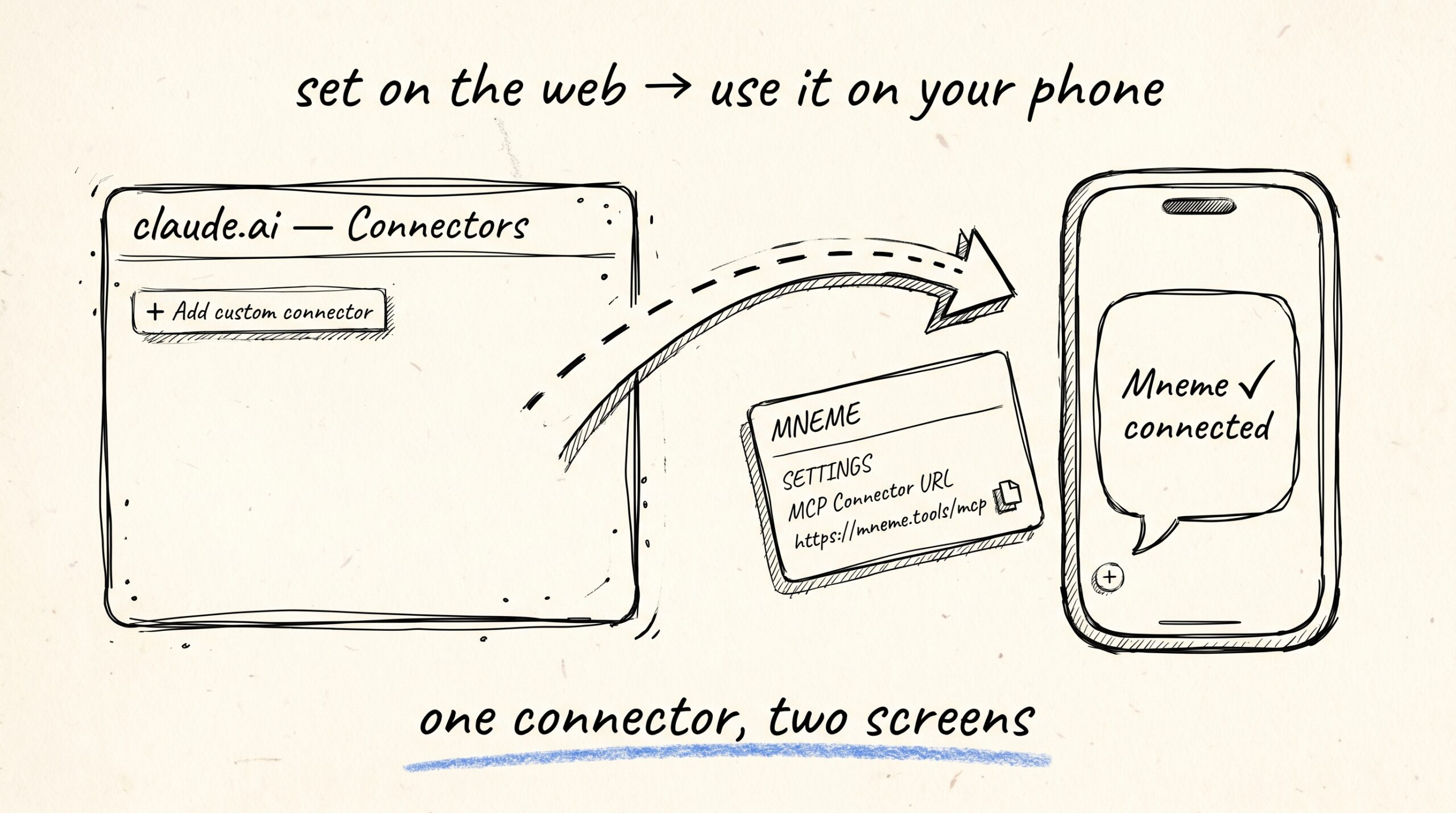
Add Mneme to Claude on the web
Open claude.ai in a browser — laptop or phone, either works.
In the left sidebar, open Customize → Connectors. Click the + next to Connectors, then Add custom connector. Paste the Mneme URL into the connector URL field and click Add.
A new tab opens for the email-verify step.
Verify your email
The page asks for your email and offers a Send sign-in link button. Type your email, click the button, then check your inbox.
Yes — even though you just signed in to Mneme. Claude is a different door, and Mneme only opens doors with proof you can read your own email. It’s signing the lease for this Claude account, not retyping your login.
Click the link in the email. You’ll see Finish signing in as [email protected]. Confirm.
If you see Your account is not authorized to access Mneme — Mneme is in early access right now and accounts are added by hand. Reply to the invite email and we’ll add you.
Pick what your phone Claude can see
Mneme then shows the Authorize access panel with two checkboxes:
- Personal — Home, mobile, cowork — your full personal vault.
- Work — Work-tagged docs only. Enable on work devices so personal data stays private.
Both are on by default.
You’re configuring this for your Claude account, not for one device — so think about what you want your phone to see. If your phone is the device you check on a personal Sunday morning and between work meetings, leave both on. If you keep work and personal phones separate, match the scope to whichever phone this Claude account lives on. (Why that matters →)
Click Authorize. The browser tab closes. Claude on the web is now connected.
Open Claude on mobile
Open the Claude app on your iPhone or Android device. If you were already signed in, sign out and back in once — that’s what triggers the sync.
In any conversation, tap the + button in the lower left of the chat box (or type /) and look for the Connectors menu. Mneme appears in the list. Toggle it on for the current conversation, or leave it on by default.
Then ask Claude:
what’s in my Mneme vault?
If it lists something — a recent note, a file you ingested, anything — your phone now has the same memory layer as your laptop. The five minutes are done.
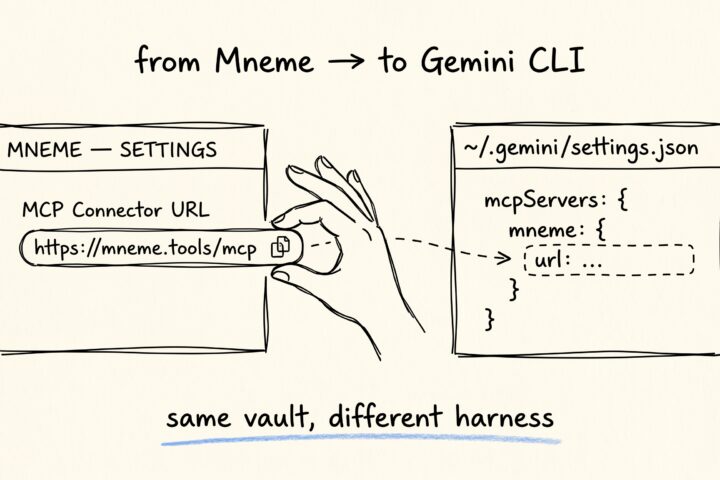
Connect Mneme to Gemini CLI
You've been running Gemini CLI in the terminal and the project context vanishes the moment you close it. Mneme is the fix — same vault you'd use in Claude, available…
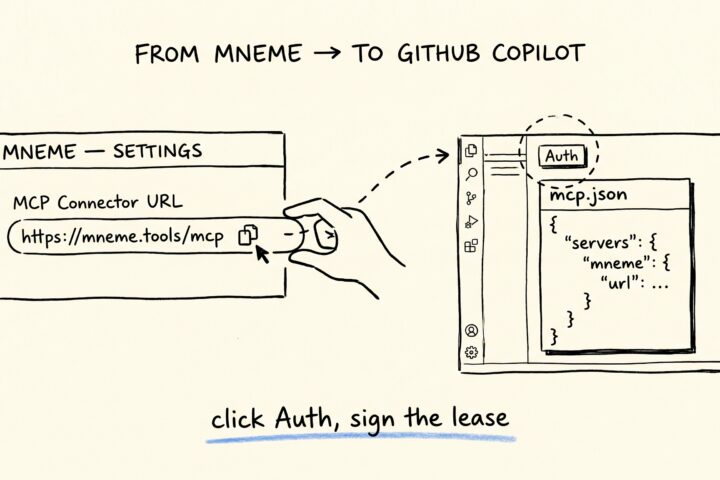
Connect Mneme to GitHub Copilot
GitHub Copilot in VS Code learned to talk to remote MCP servers in mid-2025, OAuth and all. Mneme is one of those servers. Five minutes to wire it up —…